Plan a change before you build it
Preview new construction before adding it to the year plan. Demolishing a section removes it immediately, so read the action before clicking.
Keep planning instant
You can add or remove stations and change planned track without waiting. These edits update the route and cost only.
The exact rider result stays on the last closed year. Takt calculates the changed network when you finish the current year.
Open the line for editing
Open the line list from the right end of the top bar. After loading a game, the list starts with the whole network.
Click a line to open its card. All lines returns to the complete list.
- Click a station once to select its line and mark that station.
- Click the station again to build from there.
- Aim at the next place and read the card.
- Click only when the card describes the change you want.
The card under the cursor promises what the next click will do. Right click or press Esc to stop editing.
Add or extend a station
Aim beyond an end station to extend the line. Start from a middle station and Takt extends the nearer end.
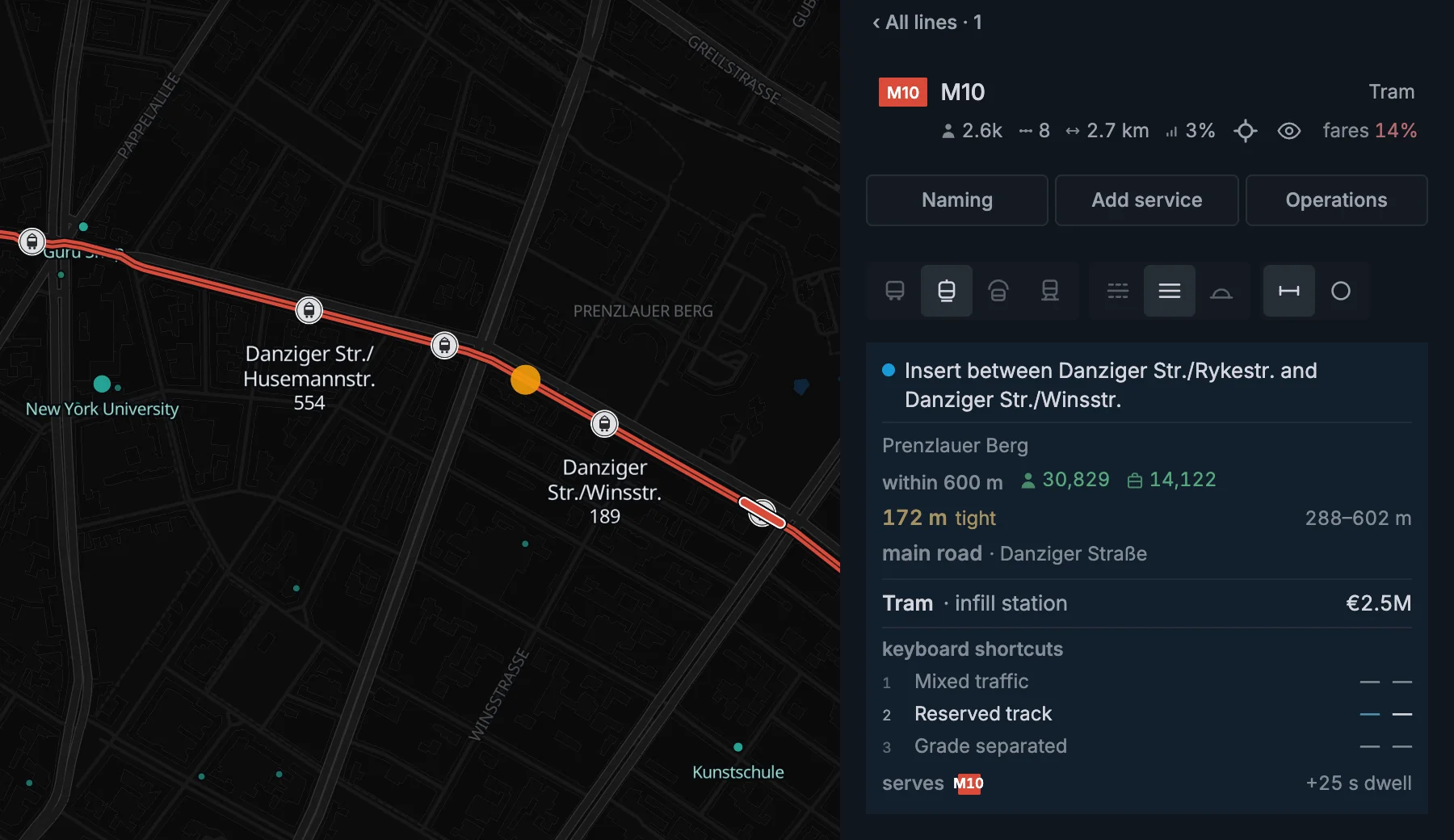
Aim at the line's own track to insert a station. The existing route stays in place and the new station becomes a stop on it.
Inserting a station on built metro or railway track keeps the paid track and its curve. The new station remains planned until the year closes.
Adding the station does not rebuild or charge for that existing track again. Its own station construction cost still applies.
Put both lines in one station
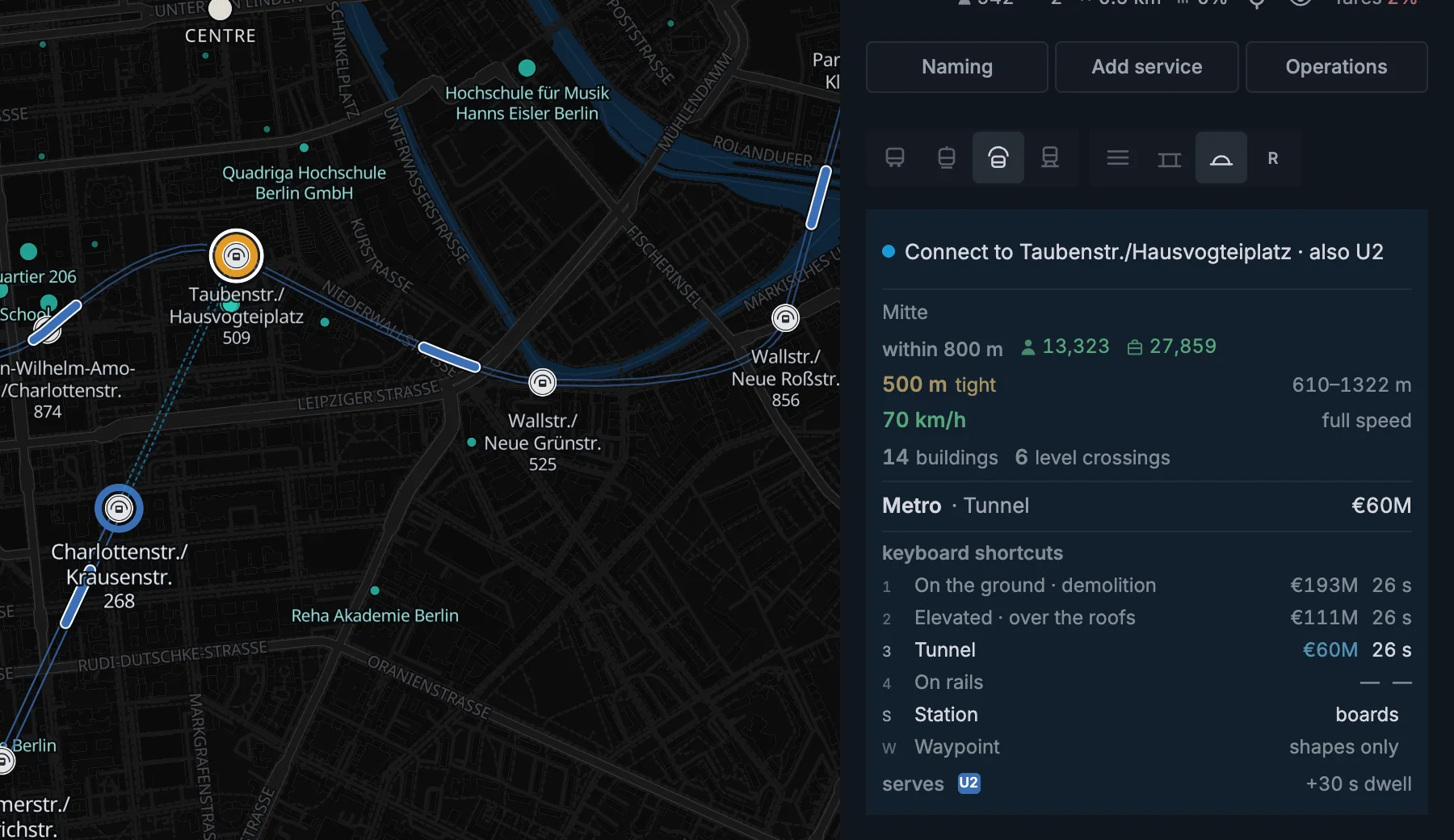
Click when the station ring highlights and the card says “Connect to”. Both lines then use one physical station. Passengers transfer without walking outside.
A station placed only nearby remains a separate station. The card shows the walking distance between the two stations.
Add a new connection between stations
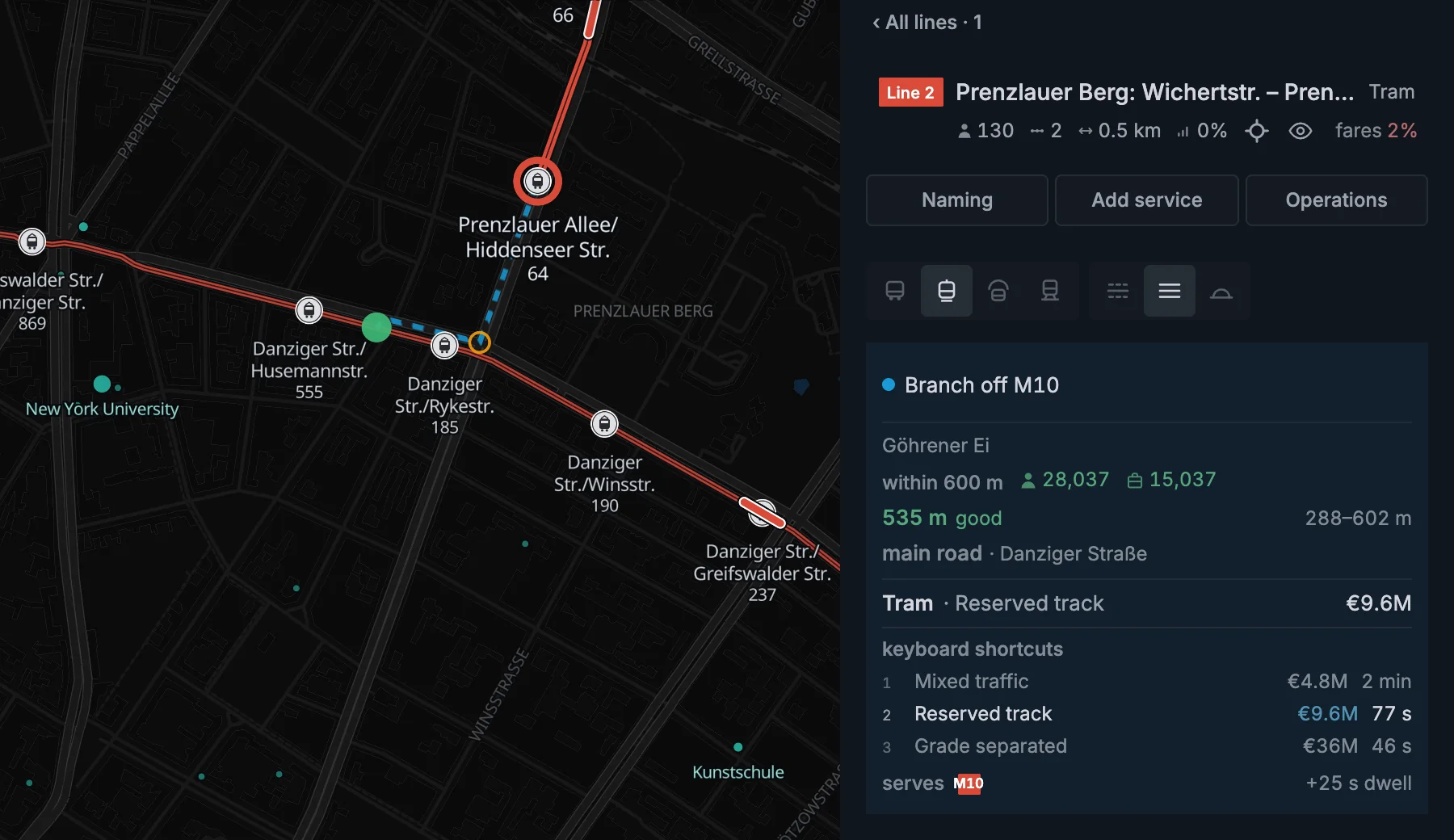
Aim at the track between another line's stations to create a new connection. The card says which line the new branch meets.
Build parallel track beside a busy route
Parallel metro or railway track gives a service separate track capacity. Build beside another line's track; a line cannot build parallel track beside its own rails.
- Open the metro or railway line that will use the new track.
- Select Build parallel track beside Use existing track.
- Choose the left or right side.
- Click a station of another line of the same mode to start the parallel stretch.
- Read the preview and cost, then click the next station you want to serve.
- Keep clicking the stations you want on the new track.
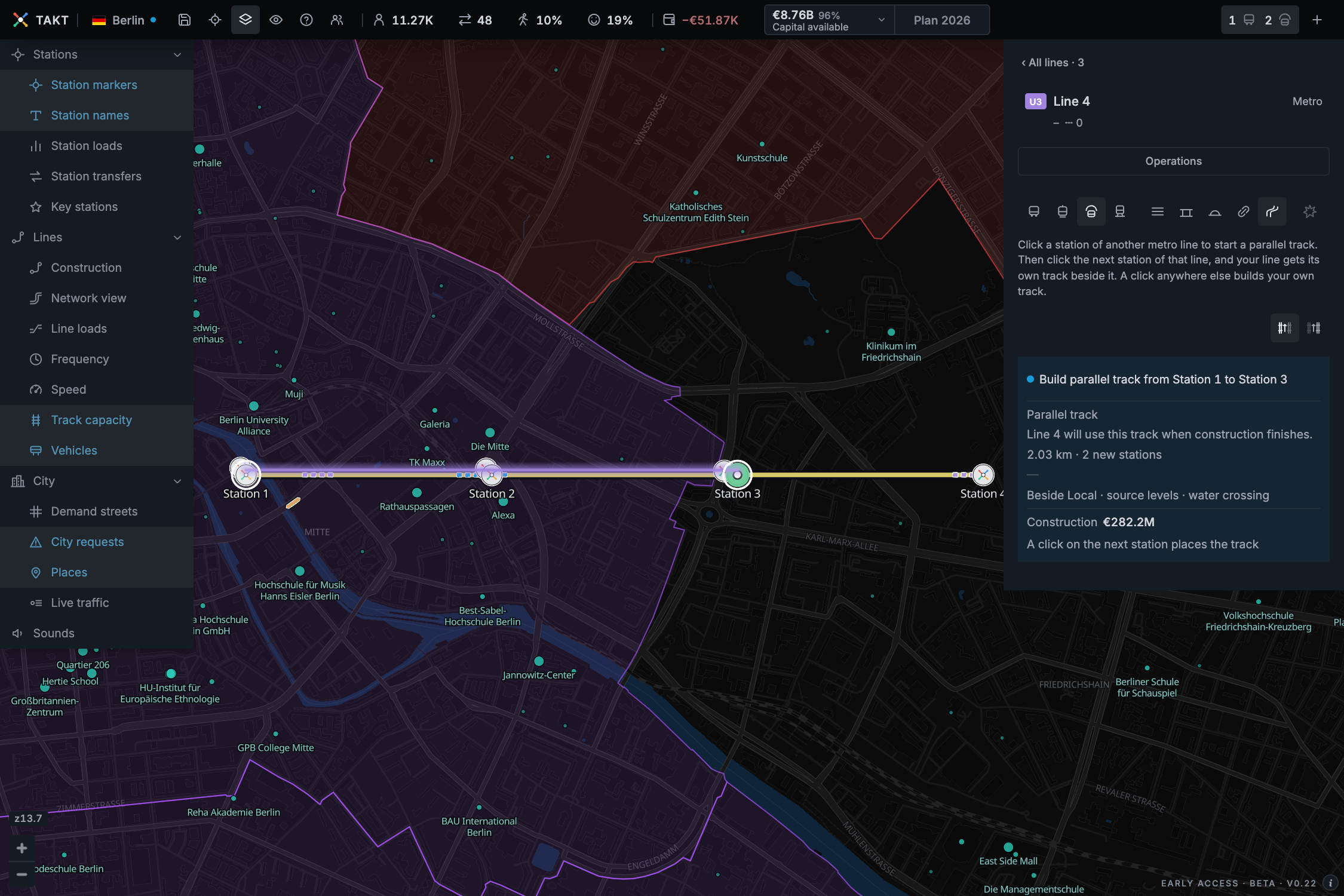
The source must be a visible line of the same mode. It can still be a plan. Closed lines and track locked during construction cannot start this action.
If your line already ends at the source station, click the next station to continue from there.
Each click adds the station you choose. Clicking farther along passes the stations between without adding stops there.
A click away from the offered source stations leaves the parallel tool. While building, it places your own track instead.
The coloured ring shows the station under the cursor, including at an interchange. Read the preview before clicking.
You can change the side of a placed stretch until you add it to the year plan. Undo takes back the edit.
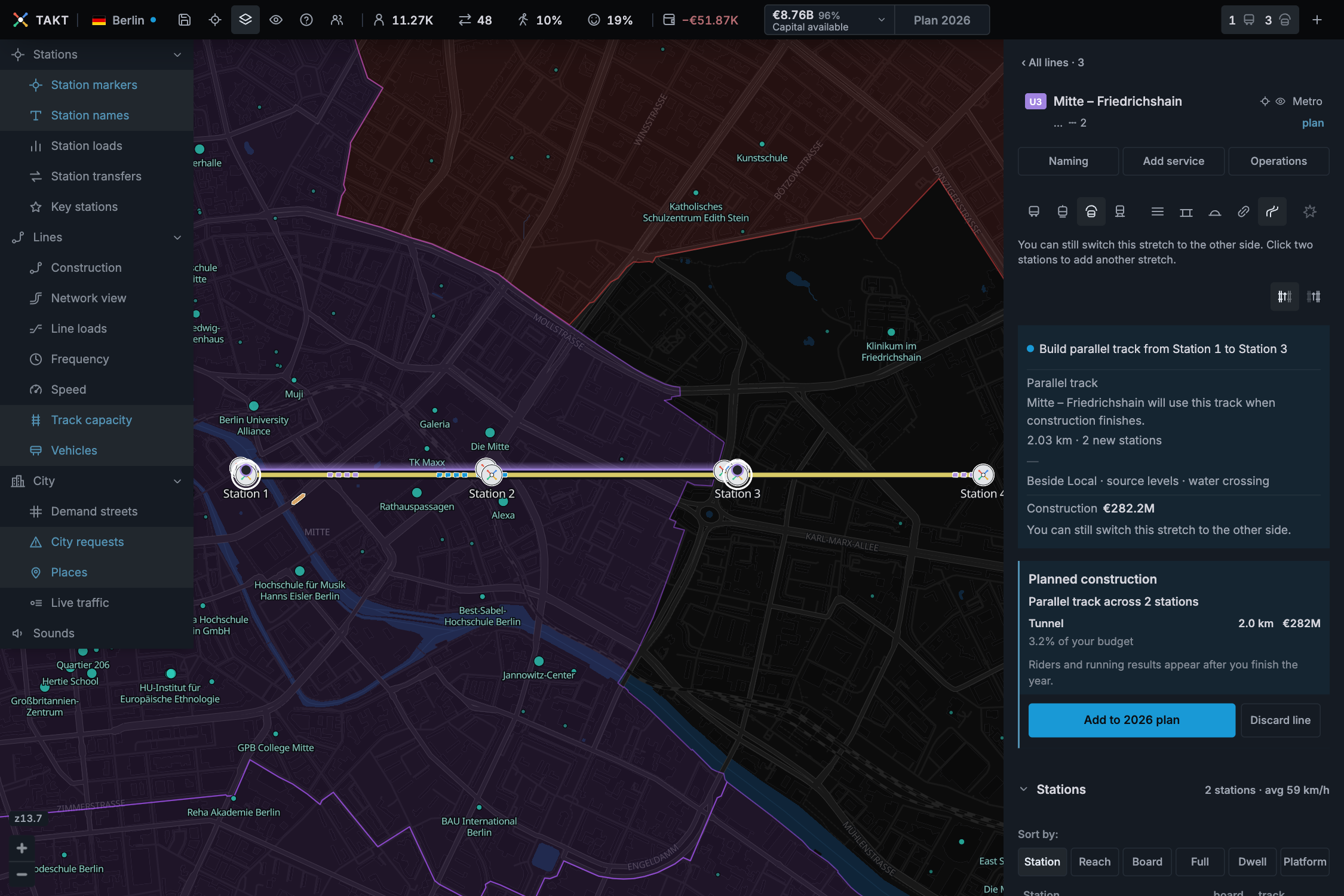
Add the work to the year plan when it is ready. The new track carries service after construction opens. The source line keeps its original track.
Any sections that the services still share can still limit departures. Use Track capacity to check them.
Remove and rebuild one track section
Demolish section removes built tram, metro, or railway track immediately. Stations, service names, and timetables remain. Buses have no track to demolish.
- Open the line card and select Demolish section.
- Point at the section to inspect its highlight.
- Read which services use the section.
- Click to remove the section.
- Press Escape to leave demolition mode.
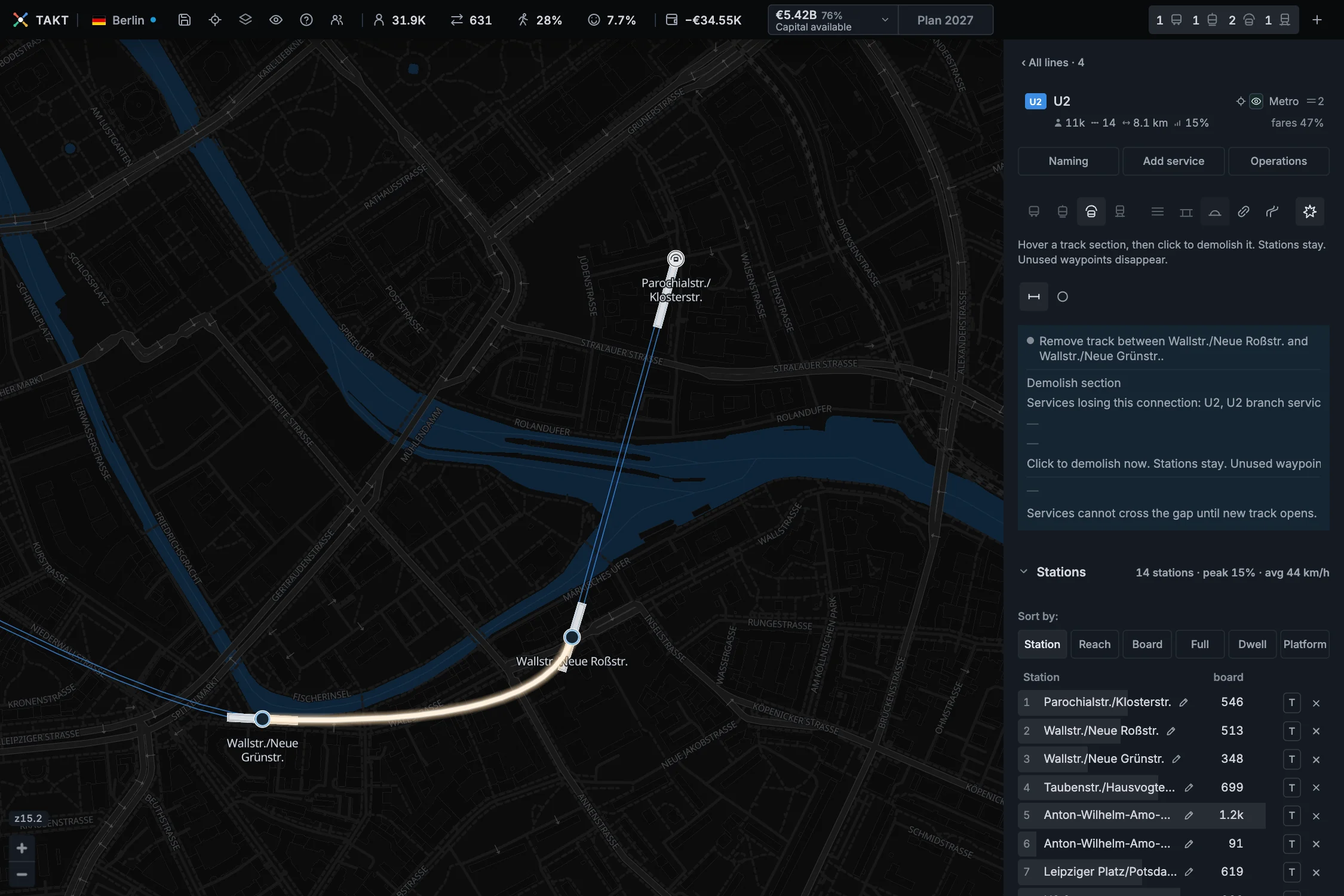
Demolition stays active after a click. Undo restores the removed track. Saving or finishing a year keeps an unrepaired gap.
Build from either exposed end to repair the gap. For metro and railway track, use stations or waypoints and choose ground, elevated track, or tunnel.
A gap beside a shared section can also be rebuilt. The retained track and its stations stay in place.
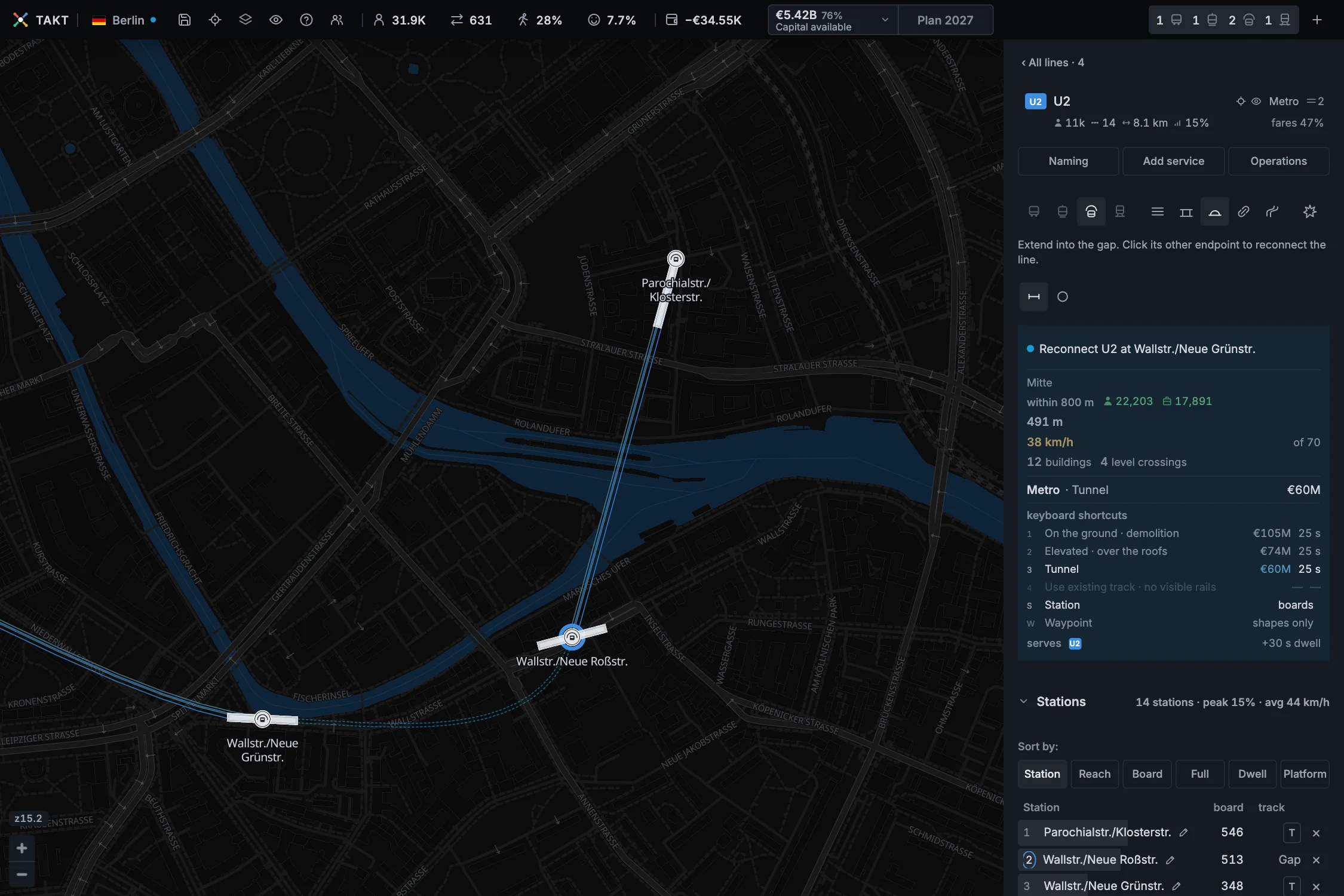
The replacement opens through normal construction. Discard plans removes the replacement plan and leaves the demolished gap.
Let the service use longer vehicles
The shortest platform a service uses limits its vehicle length. Timetable advice can identify shorter platforms that prevent more capacity.
- Open the line card, or follow a shorter-platform link when the advice offers one.
- Choose Platform in the station table if it is not already selected.
- Use the plus control to plan the required length.
- Check the cost and add the platform work to the year plan.
- Finish the year and read the result after the work opens.
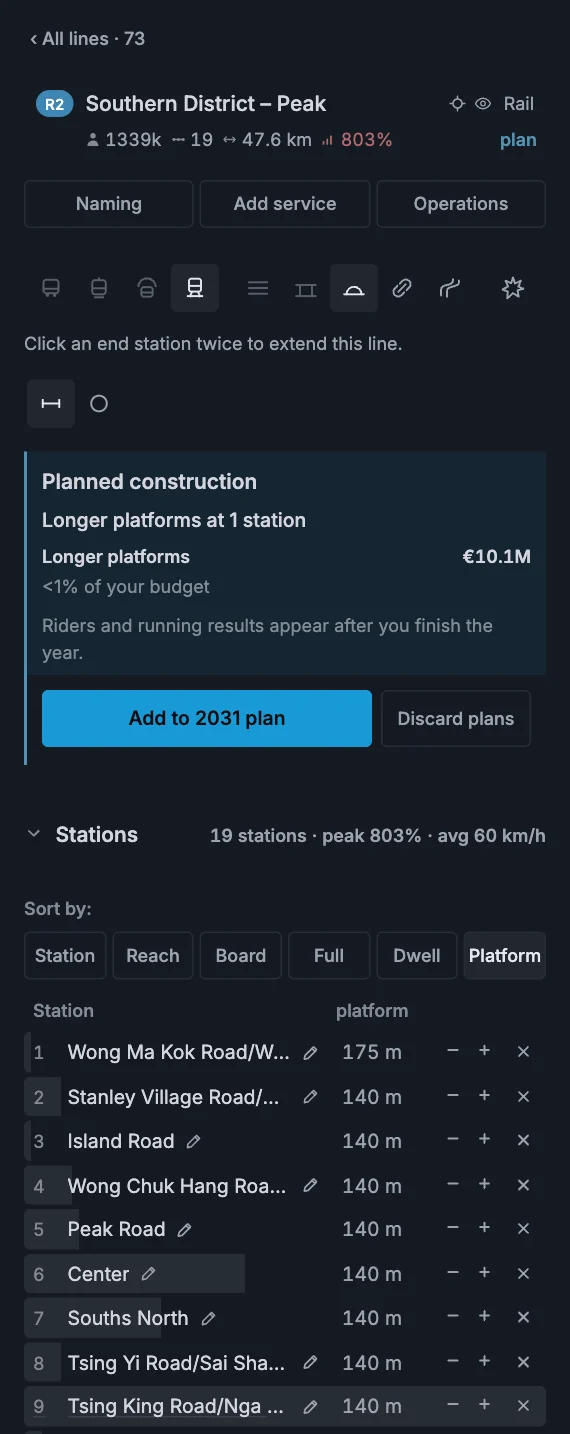
Bus stops have no platform-length control. Longer vehicles do not add departure slots to shared track.
Remove a station from the plan
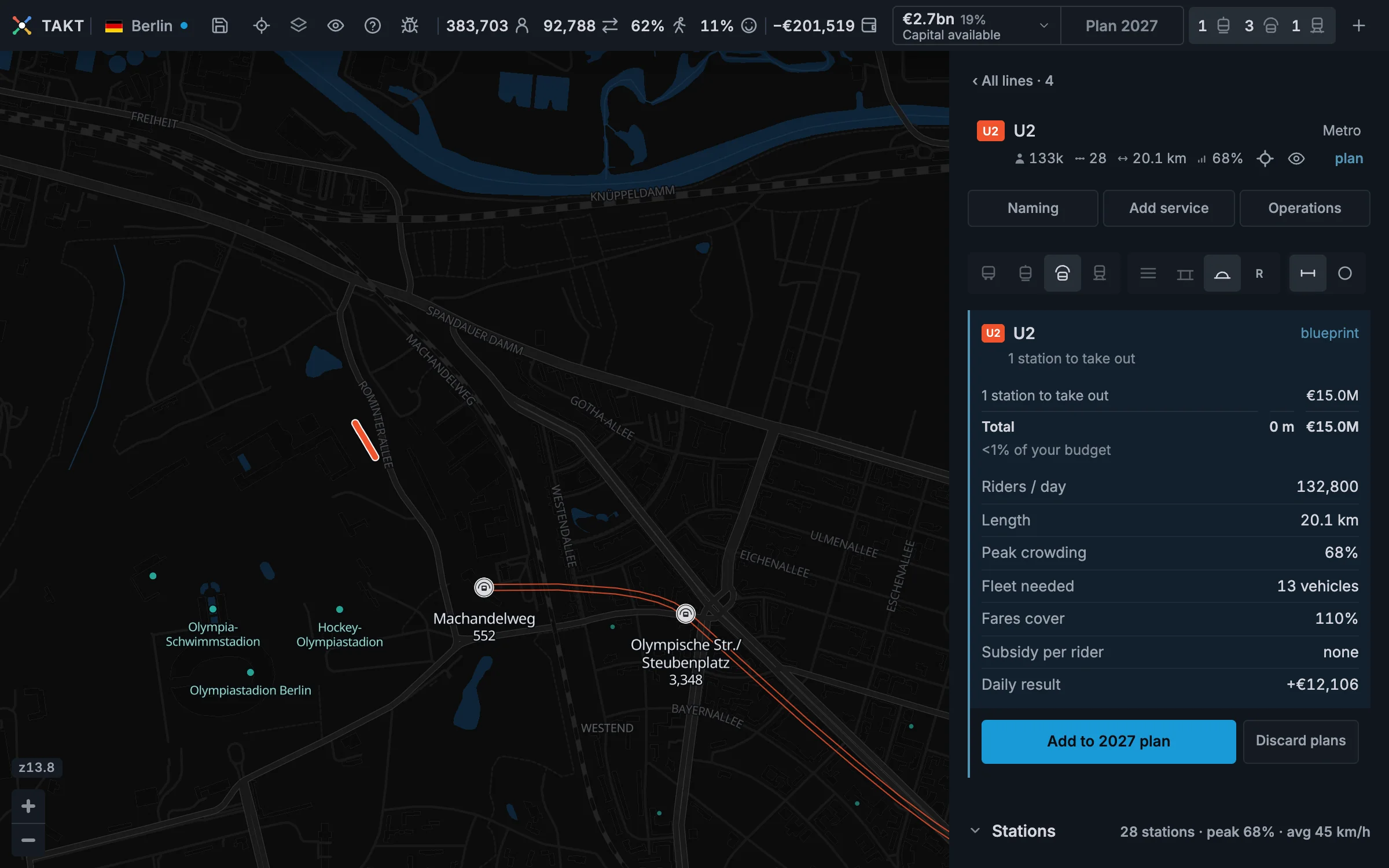
Select the station, then right click it. Or press × beside it in the station list. It disappears from the visible plan at once.
Removing an unbuilt station has no demolition charge. A built station's removal cost remains in the blueprint until the year closes.
Removing a built station costs 25% of what it originally cost to build: bus €0.1M · tram €0.6M · metro €15M · railway €9M.
Removing a middle station keeps reserved track in place. A mixed-traffic route can take a new path between the remaining stops.
The last closed year's riders and costs stay visible while you plan. The new service takes effect when you finish the year.
Extend the new end
- Remove the terminus from an existing line.
- Click the new end station to select it.
- Click it again to build from there.
- Place the next station in the new direction.
- Add the complete change to this year's plan.
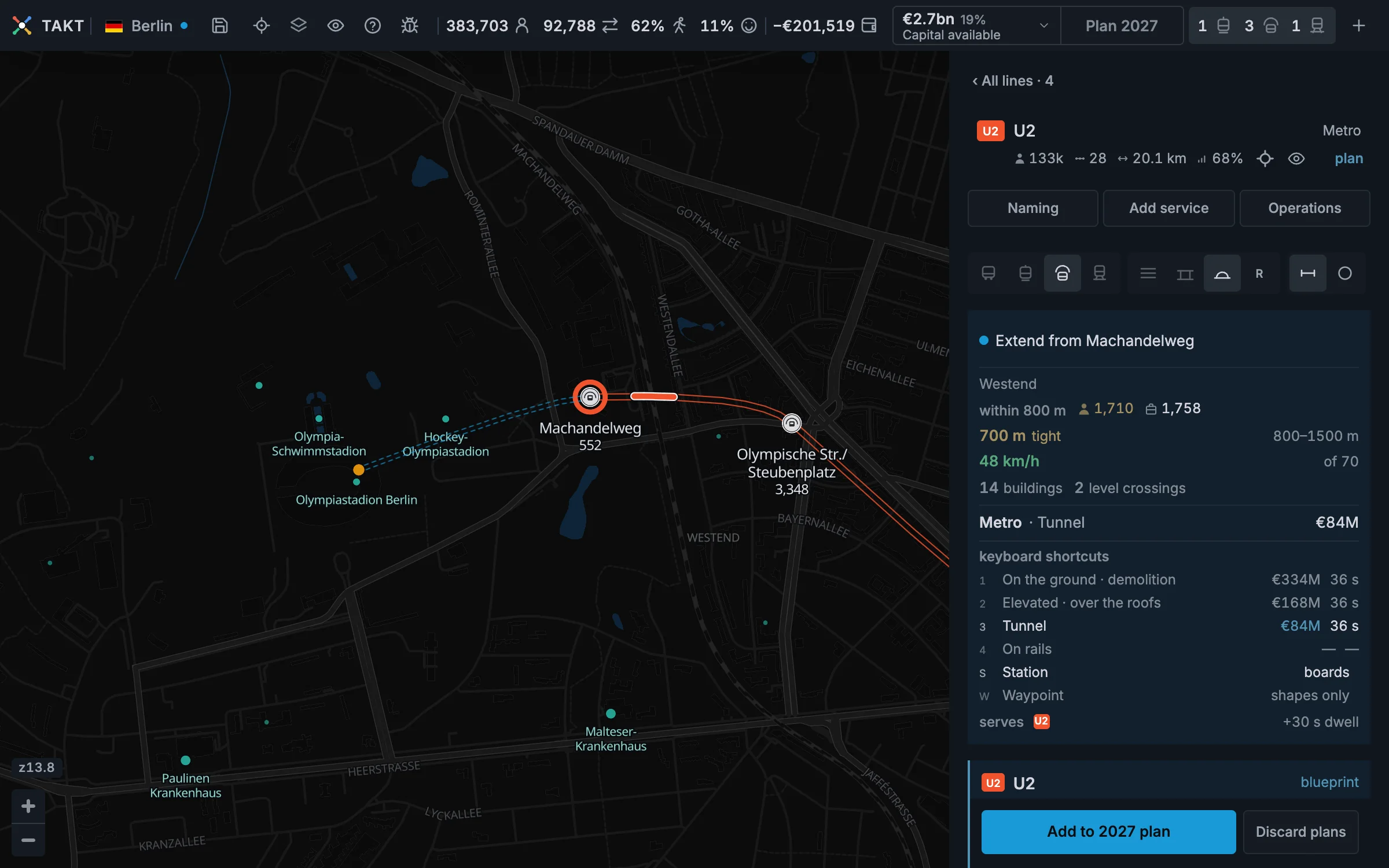
You can make several changes before finishing the year. The map shows the shorter line and its new extension together.
Use Ctrl Z or Cmd Z to restore the previous planning step. Discard plans restores the built route and stations.
Saving keeps the unfinished changes, including station removals followed by an extension.
Know what each exit keeps
You can change the mode and construction type only while a section remains planned. Built track stays as it was built.
| Action | Service | Built track | Unbuilt plan |
|---|---|---|---|
| Discard plans | Keeps running | Kept | Removed |
| Park | Stops | Kept | Kept |
| Delete line | Removed | Removed where no other line runs | Removed |
Parking removes the vehicles, riders, and running costs until you start the line again. Deleting never refunds built track.
Rails go with their line. Delete line removes the track and its stations too. To keep rails without a service, park the line.
Track that another line uses always stays. It becomes that line's own track. If two lines use it, the older line gets it.
What happens to old unused track
New parallel construction runs beside another line and leaves no empty original track behind. To keep an existing line's rails without running vehicles, park the line.
An older game can hold leftover rails with no line, including an unused-track card from an old parallel replacement. Takt removes finished leftovers when the game opens and tells you once. What they cost stays spent.
An older parallel replacement still under construction keeps the original track needed to cancel that project. It remains until the replacement is settled.
Demolish section is a separate action. Discard plans does not restore track removed with that tool. Use Undo to reverse the demolition.
The eye beside a line only hides it on the map. Its service keeps running. Read the visibility controls before using Park or Delete.
Add the work to the year
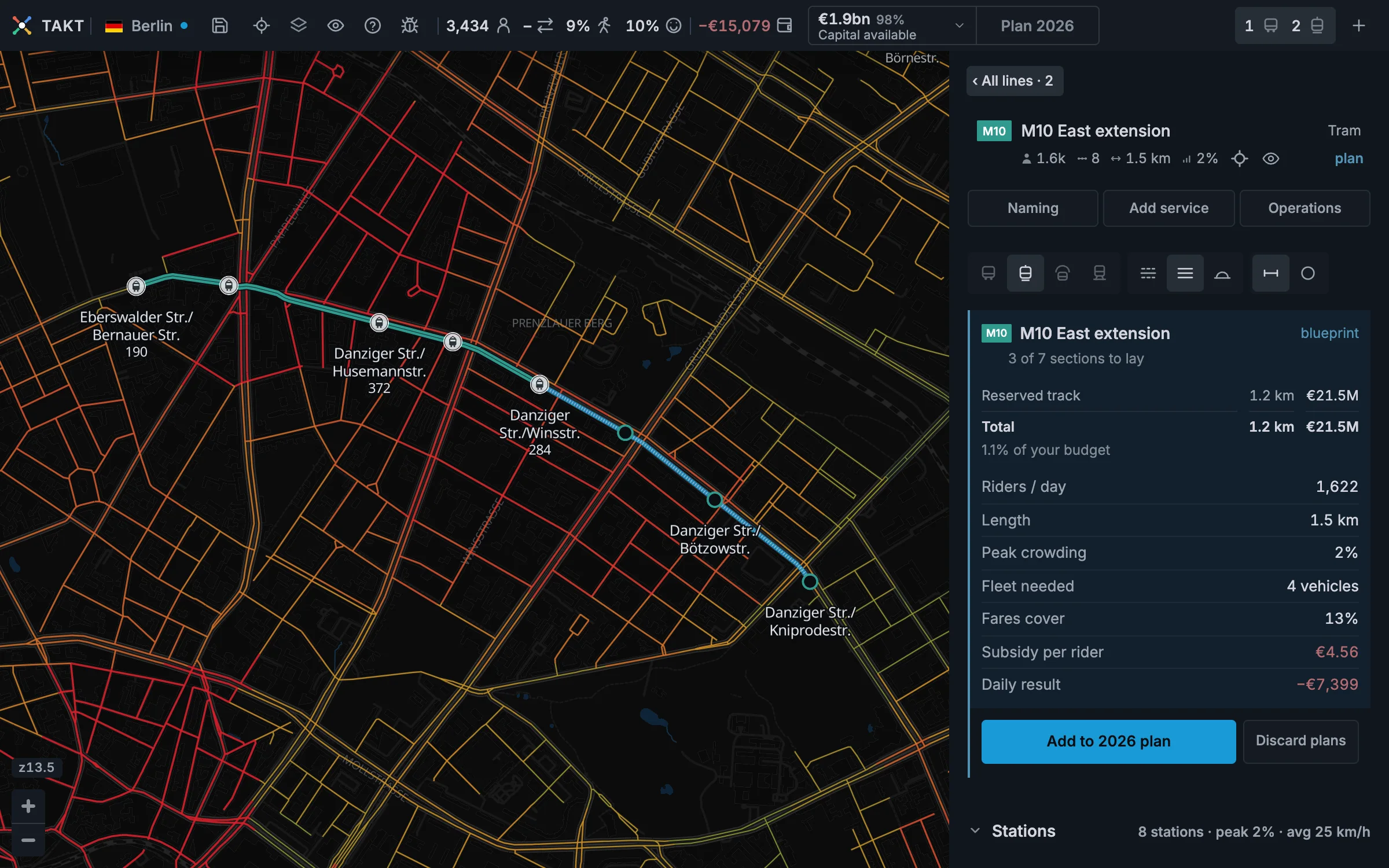
Press Add to this year's plan when the blueprint is ready. Takt reserves the complete construction cost.
You can continue to change the stations and planned track. The reservation updates at once.
Press Finish YEAR to open the year-plan card. Review construction and service changes together.
Choose Confirm plans and finish YEAR when the plan is ready. Construction follows its opening year, and Takt calculates the operating result.
Close a loop
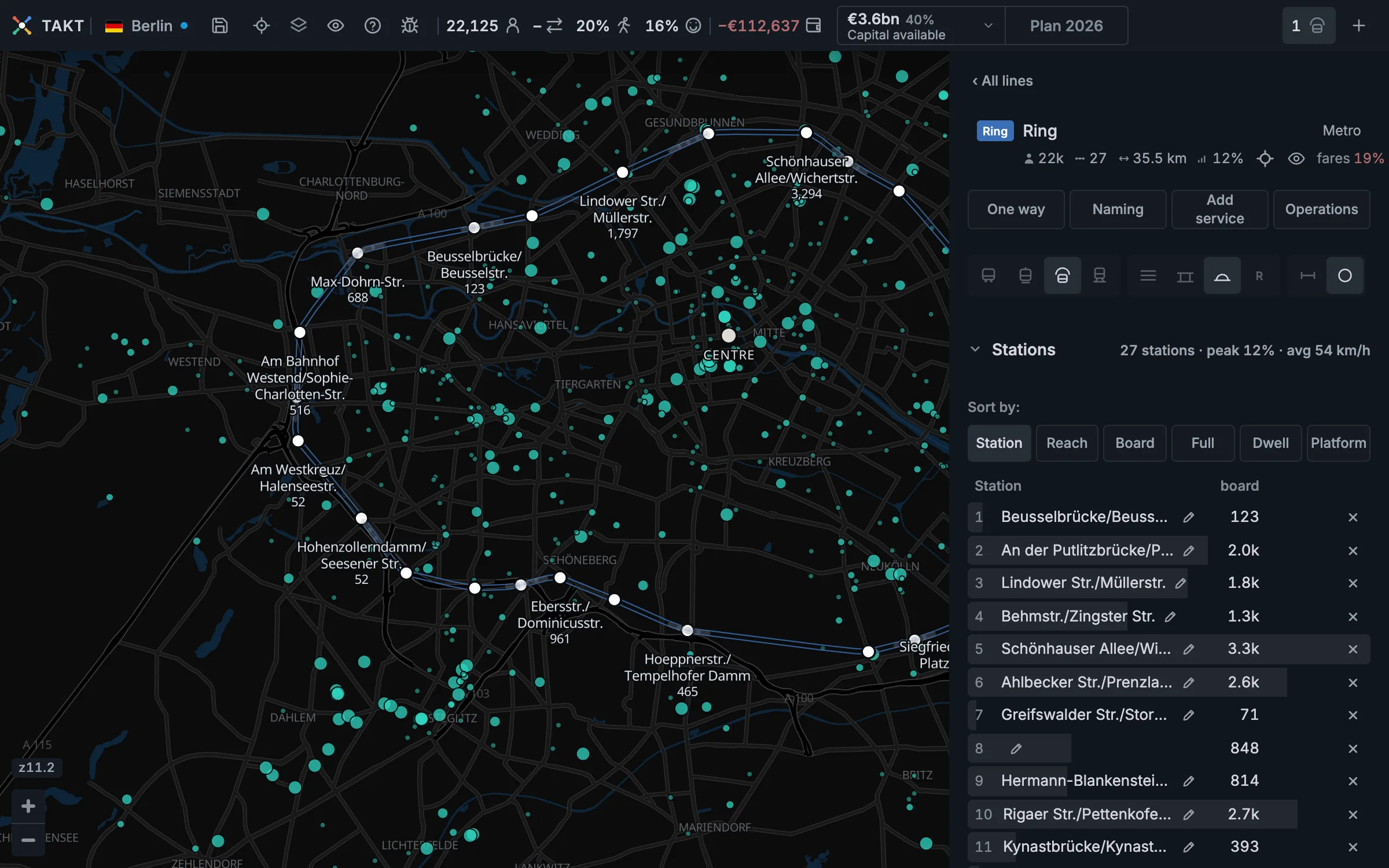
Before the loop is closed, vehicles reach the end and return the same way. Once it is closed, they keep going around the loop.
Give the line a clear sign and name
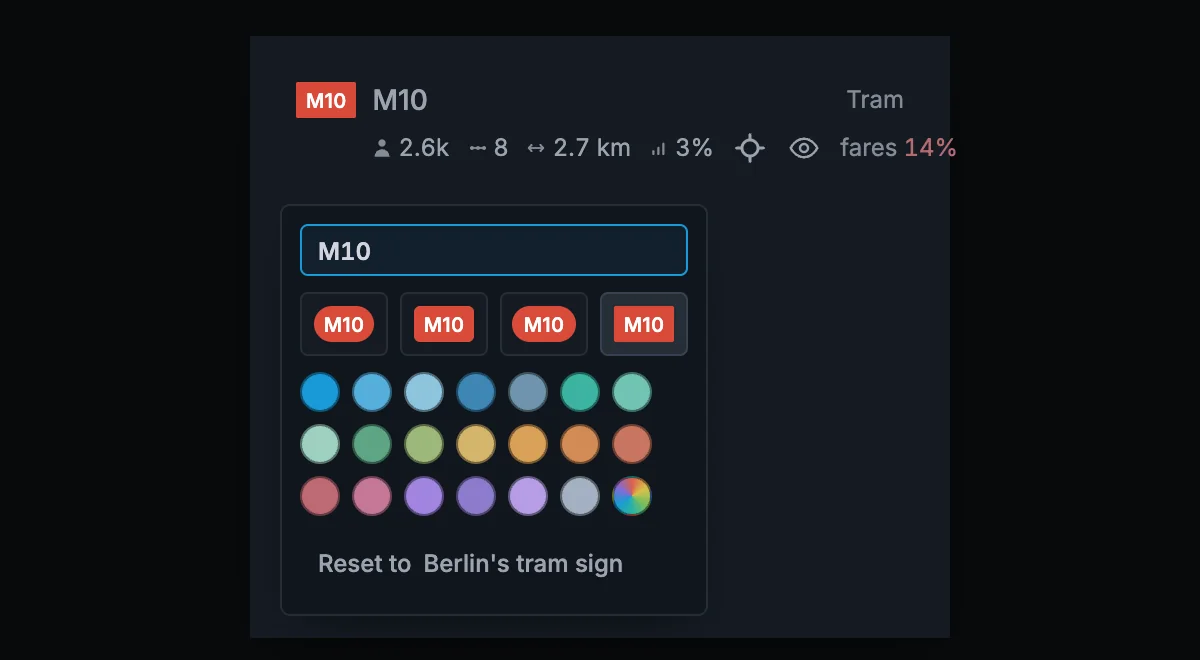
The sign is the coloured badge before the line name. Click it to change its code, shape, and colour.
The name is what the line is for. The Naming button in the card offers three names read from the line: the districts it joins, its two ends, or what it puts you next to. Its first row, Rename yourself, turns the name into a field where it stands.
A station is named after the street it stands on and the street that crosses it. The pen beside a station in the stations table renames it: type a name of your own, or take the name of the notable place next to it when one stands within 200 m.
Undo one action
Press Ctrl Z or Cmd Z to undo the last change. Each edit is one step.